IPTV Buffering Fix Australia: Why It Happens and How to Improve Streaming
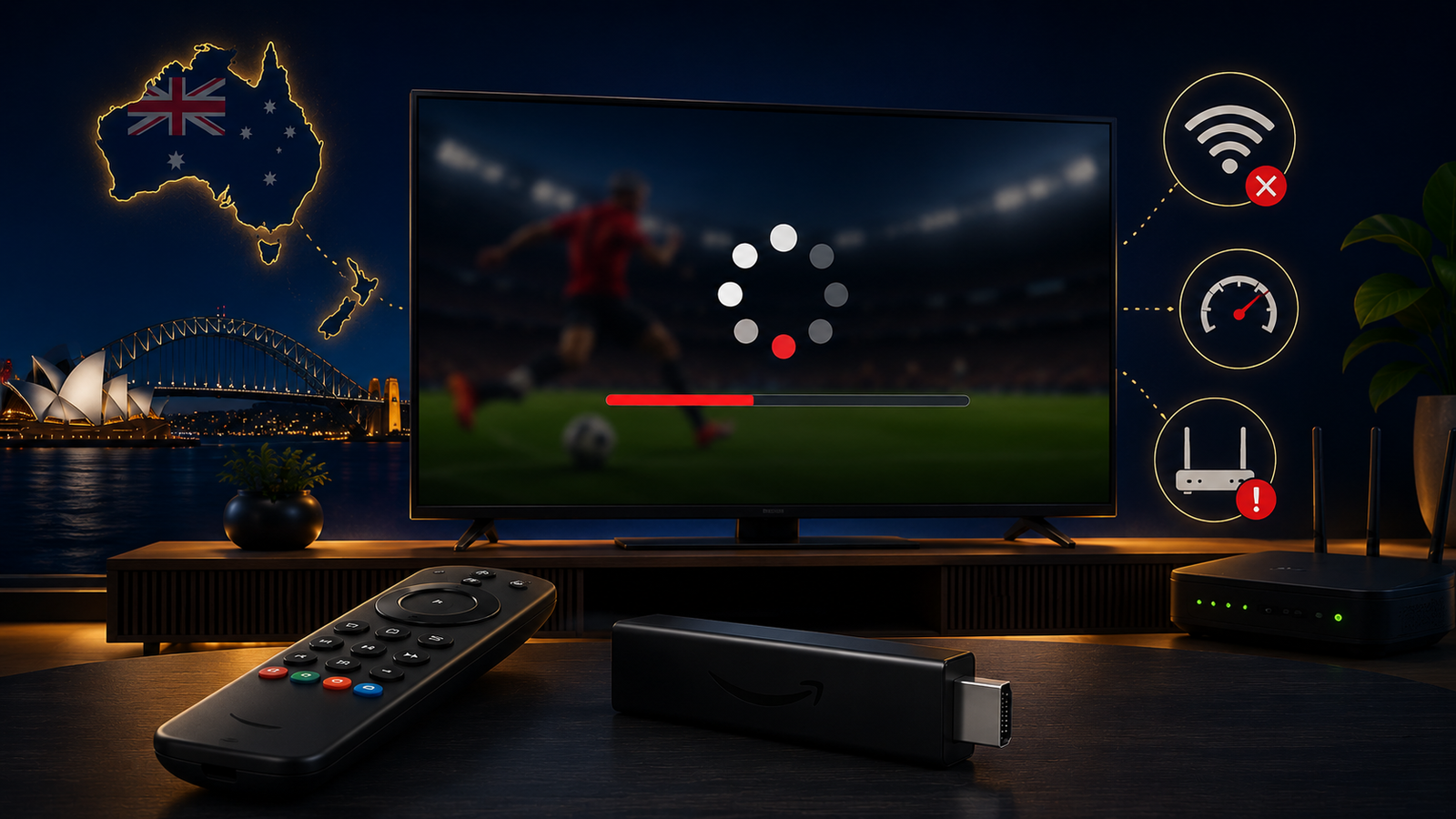
IPTV buffering is one of the most common problems viewers face in Australia. The screen freezes, the channel takes too long to load, the picture stops during a live event, or the app keeps spinning without opening the stream properly. For many users, this can be frustrating because they may already have a decent internet plan and still experience buffering.
The important thing to understand is that buffering does not always mean the IPTV service is the only problem. IPTV streaming depends on several parts working together: your internet connection, Wi-Fi signal, router, device performance, IPTV app, playlist size, stream quality and sometimes the provider network. If one part is weak, the whole experience can feel unstable.
This guide explains why IPTV buffers in Australia and what you can do to improve streaming quality. It is written for everyday users with Smart TVs, Firestick, Android TV, Android boxes and mobile devices. The goal is to help you check the simple things first before changing apps, devices or plans.
What Does IPTV Buffering Mean?
Buffering happens when your device cannot receive or process the video stream smoothly enough to play it without interruption. The app tries to load more video data before continuing. This is why you may see a spinning circle, freezing image, delay, black screen or repeated loading message.
IPTV streaming is sensitive to connection stability. Unlike a downloaded file, a live stream needs a continuous flow of data. If your connection drops for a few seconds, if the Wi-Fi signal becomes weak, or if your device slows down, the stream may pause while the app tries to catch up.
Buffering can happen on any device, but the cause can be different. A Smart TV may buffer because it is old or has limited memory. A Firestick may buffer because storage is full or Wi-Fi is weak. An Android TV box may buffer because the app cache is heavy. A mobile device may buffer because the signal changes or mobile data is unstable.
Common Reasons IPTV Buffers in Australia
Many Australian users blame internet speed first, but speed is only one part of the problem. A streaming setup can buffer even on a fast plan if the home network is not stable. Here are the most common reasons.
Weak Wi-Fi Signal
Weak Wi-Fi is one of the biggest reasons IPTV buffers. Your router may be far from the TV, blocked by walls, hidden in a cabinet, or placed near other electronics. The device may show Wi-Fi connected, but the signal can still be unstable.
If your IPTV works better when the device is close to the router, the problem is probably Wi-Fi coverage. This is common in larger homes, apartments with thick walls, or rooms far from the router.
Router Overload
A home router can become overloaded when many devices are connected at the same time. Phones, laptops, cameras, gaming consoles, tablets and Smart TVs can all use bandwidth in the background. Even if you are not actively using them, some devices may update apps, sync files or stream video.
If IPTV buffers more during evenings, weekends or when many people are home, your router or home network may be under pressure.
Old Streaming Device
Old Smart TVs, old Firestick models and low-quality Android boxes can struggle with modern streaming apps. The app may open slowly, categories may take a long time to load, and streams may freeze because the device does not have enough power or memory.
Sometimes users think the internet is the problem, but the real issue is the device itself. If the same IPTV details work better on a newer device, the old device may be the bottleneck.
App Cache and Storage Problems
IPTV apps store temporary data such as categories, EPG information and playback cache. Over time, this data can make the app slower, especially on devices with limited storage.
Firestick and Android devices can be affected by full storage. If your device has many unused apps, low free space or a heavy cache, streaming performance can drop.
High Stream Quality
Higher-quality streams need more stable bandwidth and better device performance. A 4K stream can look great, but it also puts more pressure on Wi-Fi, router and device hardware.
If HD works smoothly but higher quality buffers, your setup may not be stable enough for that stream quality at that moment.
Provider-Side Load
Sometimes the issue is not your home network. Provider-side load, server maintenance, routing problems or temporary congestion can also affect streaming. This is why it is useful to test more than one category, restart your app, and check whether the issue happens on all content or only specific streams.
Step 1: Restart Your Router and Device
The simplest fix is often the most effective. Restart your router and streaming device before doing complicated troubleshooting. Routers can run for weeks without restarting, and streaming devices can build up temporary issues.
- Turn off your Smart TV, Firestick, Android box or device.
- Unplug your router from power.
- Wait around 30 seconds.
- Plug the router back in and wait until internet is fully connected.
- Turn your streaming device back on.
- Open the IPTV app and test again.
This step refreshes the connection and clears temporary network problems. It will not fix every buffering issue, but it is always a good starting point.
Step 2: Improve Wi-Fi Strength
If your IPTV device uses Wi-Fi, signal strength matters. A device can show connected but still receive an unstable signal. For IPTV, stability is more important than just seeing full bars on the screen.
Move the router to a more open position if possible. Avoid placing it inside cabinets, behind TVs, near thick walls or close to other electronics. If your TV is far from the router, consider moving the device closer for a test. If buffering improves, the issue is likely Wi-Fi coverage.
Use the Right Wi-Fi Band
Some routers offer both 2.4 GHz and 5 GHz Wi-Fi. The 5 GHz band can be faster over shorter distances, while 2.4 GHz can travel further but may be more crowded. The best option depends on your home layout and distance from the router.
If one Wi-Fi band buffers, try the other. Testing both can help you find the most stable connection for your IPTV device.
Step 3: Use Ethernet When Possible
Ethernet is one of the best ways to reduce buffering. A wired connection is usually more stable than Wi-Fi because it avoids signal drops, wall interference and wireless congestion.
If your Smart TV or Android box has an Ethernet port, try connecting it directly to the router. For Firestick, some users use a compatible Ethernet adapter. If Ethernet improves streaming immediately, Wi-Fi was likely the main issue.
Ethernet is especially useful for high-quality streams, long viewing sessions and homes where the TV is far from the router.
Step 4: Clear IPTV App Cache
App cache can make IPTV apps slow over time. Clearing cache can help with freezing, slow loading, categories not updating and playback problems.
On Firestick
- Go to Settings.
- Open Applications.
- Choose Manage Installed Applications.
- Select your IPTV app.
- Choose Clear Cache.
- Restart the app.
On Android TV or Android Box
- Open Settings.
- Go to Apps.
- Select the IPTV app.
- Open Storage.
- Clear Cache.
- Restart the device if needed.
Be careful not to clear data unless you are ready to enter your login details again. Clearing cache is safer because it keeps most app settings.
Step 5: Remove Unused Apps and Free Storage
Low storage can affect streaming devices. Firestick and Android boxes can slow down when storage is nearly full. Apps may crash, menus may lag, and IPTV playback may freeze.
Remove apps you do not use. Restart the device after uninstalling. Keeping enough free space helps the IPTV app run more smoothly.
Step 6: Test Another IPTV App
Sometimes the problem is the app, not the service. Some apps handle playlists, EPG and playback better than others. If your details work in one app but buffer in another, the app may not be optimized for your device.
Try a compatible app recommended for your device. For example, the best app for Android TV may not be the same as the best app for Samsung or LG Smart TV. App choice matters because every platform has different performance.
You can also read our Best IPTV Apps for Firestick, Android TV and Smart TV in 2026 guide for more setup direction.
Step 7: Check If Buffering Happens Everywhere
A useful test is to check whether buffering happens on all categories or only one specific stream. If everything buffers, the issue may be your internet, device, app or provider connection. If only one stream buffers, the problem may be limited to that source or category.
Try different categories, different quality options and a different device if available. Testing helps you avoid changing the wrong thing.
Smart TV Buffering Fixes
Smart TVs are convenient, but they can be limited by app store support and hardware performance. If IPTV buffers on a Samsung, LG, Sony or Hisense TV, start with the basic checks.
- Restart the TV completely, not only the app.
- Check if the TV software has updates.
- Use Ethernet if available.
- Remove unused apps where possible.
- Try a different compatible IPTV app.
- Use an external device if the TV is old or slow.
If the Smart TV feels slow in general, an external device such as Firestick or Android TV box may give better results. You can learn more in our IPTV on Smart TV Australia setup guide.
Firestick Buffering Fixes
Firestick is popular because it is flexible and easy to use. However, it can buffer when storage is full, Wi-Fi is weak or too many apps are installed.
- Clear the IPTV app cache.
- Remove unused apps.
- Restart the Firestick.
- Move the Firestick closer to the router.
- Use a compatible Ethernet adapter if needed.
- Avoid running too many background apps.
If your Firestick is an older model, performance may be limited. A newer streaming device can sometimes solve issues that settings alone cannot fix.
When Should You Contact Support?
Contact support when you have already checked your internet, restarted your device, cleared cache and tested more than one stream. Sending the right information helps support understand the problem faster.
Before messaging Ultim4K, prepare your device model, app name, country, internet type, whether you use Wi-Fi or Ethernet, and a short description of the issue. For example, mention whether all streams buffer or only one category.
Related Ultim4K Guides
These related guides can help you improve your IPTV setup:
- Best IPTV Setup Guide for Australia and New Zealand in 2026
- IPTV on Smart TV Australia: Samsung, LG, Sony and Android TV Setup Guide
- Best IPTV Apps for Firestick, Android TV and Smart TV in 2026
- IPTV for New Zealand Viewers: Setup Tips, Devices and Streaming Guide
FAQ
Why does IPTV buffer even with fast internet?
IPTV can buffer even with fast internet if Wi-Fi is weak, the router is overloaded, the device is slow, the app cache is full, or the connection drops for short moments.
What is the best quick fix for IPTV buffering?
Restart your router and device, then clear the IPTV app cache. After that, test Ethernet or move closer to the router if you use Wi-Fi.
Should I use Ethernet for IPTV?
Ethernet is usually better for stability. If your device supports it, a wired connection can reduce buffering and make streaming more consistent.
Can my Smart TV be the reason IPTV buffers?
Yes. Older Smart TVs may have slower hardware and limited app support. If IPTV works better on another device, your TV may be part of the problem.
What should I send to Ultim4K support?
Send your device model, app name, country, whether you use Wi-Fi or Ethernet, and explain if buffering happens on all streams or only certain categories.
Need Help Fixing IPTV Buffering?
Message Ultim4K on WhatsApp and tell us your device model, country, app name, and whether you use Wi-Fi or Ethernet. We will help you check the setup step by step.
💬 WhatsApp Ultim4K