Chromecast Not Working with NZ Apps? Fix Guide
Chromecast is a simple way to put New Zealand streaming apps on the main TV, but casting can fail when the phone and TV are on different networks, the Chromecast model is too old, the app is outdated, or the streaming account needs a fresh login. This guide focuses on local NZ apps such as TVNZ+, ThreeNow, Neon, Sky Go and Sky Sport Now.
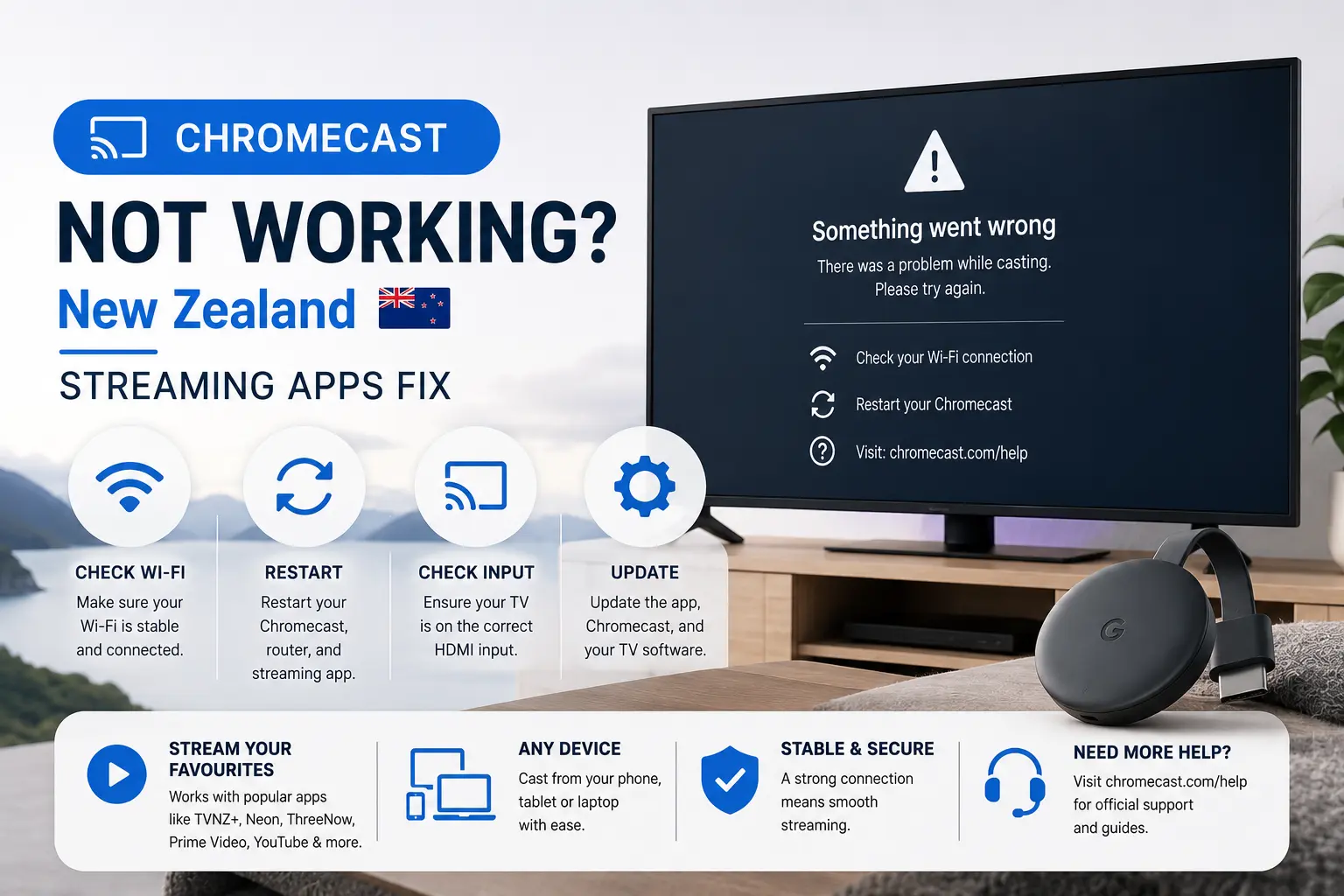
Quick answer: Make sure your phone and Chromecast are on the same home Wi‑Fi, update the app, restart Chromecast and router, then check whether the service supports your Chromecast model. If casting fails only in one app, troubleshoot that app first; if every app fails, troubleshoot the Chromecast or network.
First check the Chromecast generation
Not every Chromecast behaves the same. TVNZ+ says Chromecast 3rd generation and newer are supported, and Sky Go support notes specific Chromecast requirements for casting. Older devices can still appear in the cast menu but fail on quality, live streams or support.
If your Chromecast is very old, test the same app on a phone first. If the phone plays normally but casting fails, the issue is probably discovery, Wi‑Fi, Chromecast model support or the TV HDMI device.
| App | Common casting issue | What to check |
|---|---|---|
| TVNZ+ | Cast icon missing or playback fails | Chromecast generation and same Wi‑Fi |
| Neon | Video starts then stops | App update and Chromecast restart |
| Sky Go | Sports stream will not cast | Supported Chromecast and latest app |
| ThreeNow | Phone cannot find TV | Guest Wi‑Fi and network discovery |
Phone and Chromecast must be on the same network
Many New Zealand homes use fibre with mesh Wi‑Fi, guest networks or multiple router bands. Casting can fail when the phone is on one network and Chromecast is on another. Check that both devices are connected to the same SSID, not just the same internet connection.
- Turn off mobile data while testing casting.
- Avoid guest Wi‑Fi because it may block local device discovery.
- Restart the router and Chromecast.
- Keep the phone close to the router during setup.
- Update the app you are casting from.
Want a cleaner New Zealand streaming setup?
Compare Ultim4K plans, test your device first, and choose a setup that fits your Smart TV, Chromecast, Fire TV, phone or tablet.
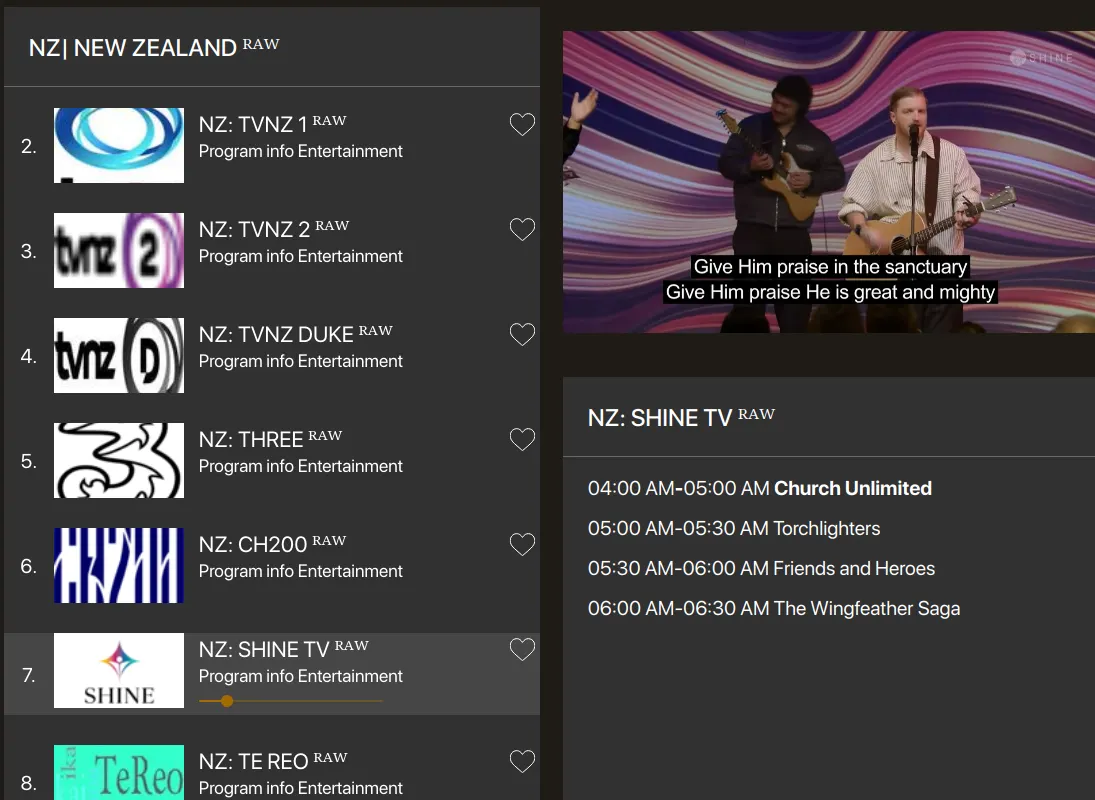
Live sport is harder than on-demand casting
Live sport through Sky Sport Now, Sky Go or TVNZ+ can be more sensitive than a normal on-demand episode. The stream must stay close to real time, so weak Wi‑Fi, old Chromecast hardware or other devices downloading updates can cause buffering or dropouts.
Before a major match, cast a short video from the same app at least 30 minutes earlier. If the cast session fails immediately, restart the Chromecast. If the video plays but buffers, move the Chromecast closer to the router or use a device that supports Ethernet.
When to stop casting and use a TV app instead
If your Chromecast model is unsupported or unstable, a full TV device with a remote may be easier. Chromecast with Google TV, Apple TV, Fire TV Stick and Android TV boxes usually run apps directly, which can be more stable than casting from a phone during long sessions.
Before match night or family viewing
New Zealand streaming problems usually become stressful when everyone is ready to watch. Test the app before a live sport event, movie night or replay. Open the app early, confirm the login, play a short video, and keep a backup device ready if the built-in TV app is old.
Official resources to check
- TVNZ+ supported casting devices
- Neon supported devices
- Sky Go Chromecast help
- ThreeNow ways to watch
- Fix streaming buffering on New Zealand fibre and Wi‑Fi
- Best streaming apps for New Zealand Smart TV users
FAQ
The phone and Chromecast may be on different Wi‑Fi networks, guest Wi‑Fi may block device discovery, or the app may need an update or restart.
TVNZ+ says Chromecast 3rd generation and newer are supported, as well as Android TV devices with built-in Chromecast functionality.
Live sport is sensitive to Wi‑Fi drops, overloaded routers, old app versions and weak signal at the TV. Restart the router and use stronger 5 GHz Wi‑Fi where possible.
Neon lists Google Chromecast and Google TV Chromecast as connected device options, and also notes casting and AirPlay from mobile devices.
No. Use official apps and supported devices. Unknown APKs can be unstable, unsafe and outside official support.
Need help with your New Zealand streaming setup?
Message Ultim4K with your TV model, app name, internet type and the issue you see. We can help you check device compatibility and stable viewing options before you choose a plan.