How to Fix Streaming Buffering on New Zealand Fibre and Home Wi-Fi
A fast New Zealand fibre plan can still buffer when the television has weak Wi-Fi, a mesh node has a poor backhaul, another device is downloading or the streaming app is outdated. This guide separates device, home-network and broadband problems in a clear test order.
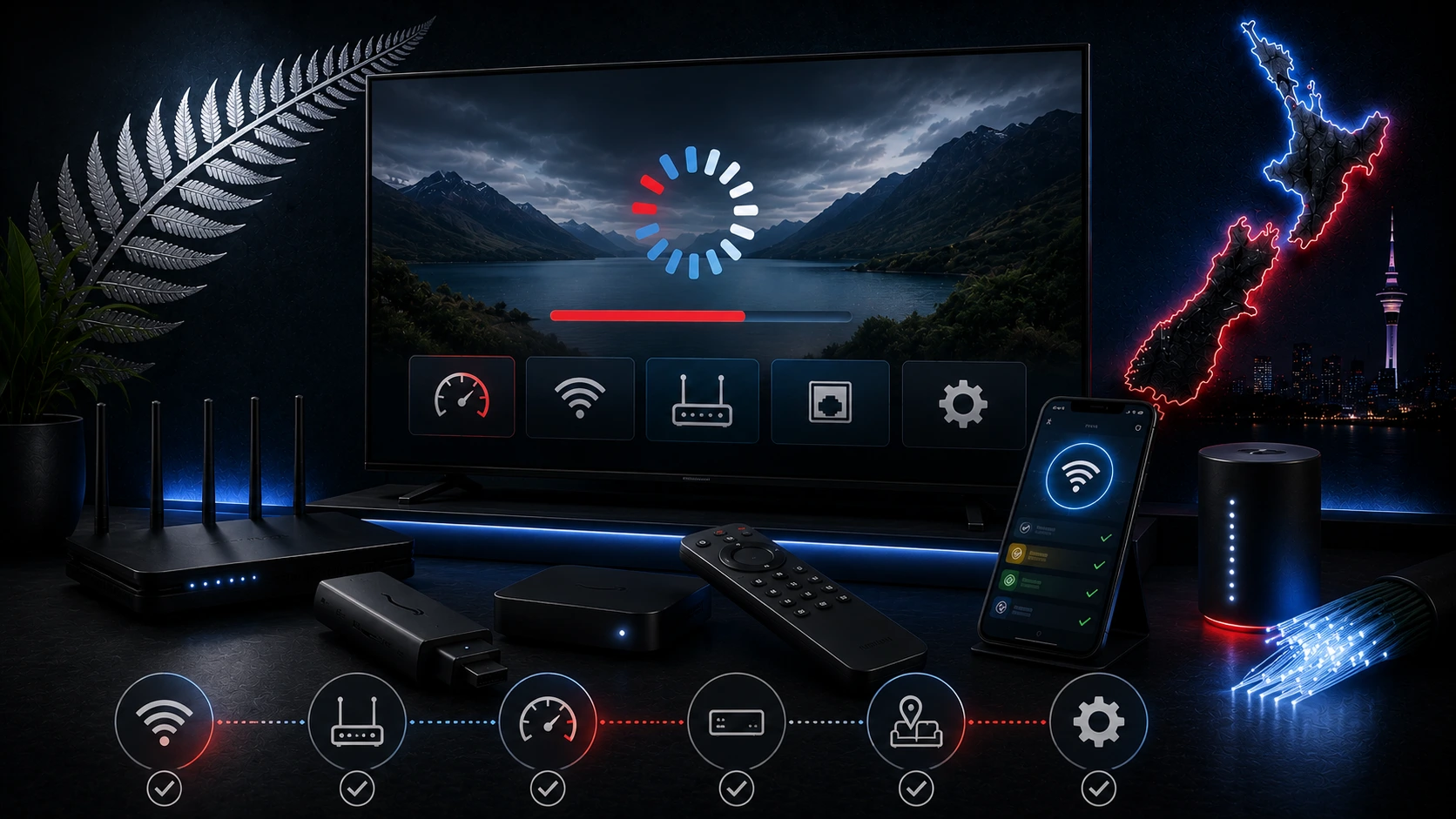
Identify whether the issue is local or external
Test the same stream on a second device connected to the same network. If every device buffers, investigate the router, broadband or streaming platform. If only one television buffers, focus on that app, device and Wi-Fi signal.
Test speed at the viewing location
A speed test beside the router does not represent the television in another room. Test on the actual device, or stand beside it with a phone connected to the same Wi-Fi band. Repeat the test and look for consistency.
Use Ethernet as the reference test
Connect the television or streaming box directly to the router. If buffering disappears, the fibre connection is probably adequate and the local Wi-Fi needs improvement.
Improve router and mesh placement
- Place the router in an open, elevated position.
- Keep it away from metal cabinets and dense obstacles.
- Do not hide it behind the television.
- Place mesh nodes where they still receive a strong backhaul signal.
- Use wired backhaul where practical.
Choose the correct Wi-Fi band
2.4 GHz reaches further but is often crowded. 5 GHz is faster at short range and is usually better for HD or 4K streaming near the router. 6 GHz can provide cleaner channels on compatible equipment but has shorter range.
Pause household traffic
- Game and operating-system updates
- Cloud photo backups
- Large work uploads
- Multiple 4K streams
- Security-camera uploads
Update apps and devices
Install software updates before an important event. Remove unused apps and restart the television. On Android TV or Fire TV, clear the app cache before clearing data, which normally signs the account out.
Lower quality temporarily
Use Auto or HD instead of forcing 4K. A stable picture is more useful than a higher resolution that freezes. Improve the network before increasing quality again.
Sky Sport Now buffering
Sky recommends testing at the location and device where the stream plays. It recommends a stable connection of at least 7.5 Mbps and fibre broadband. If only Sky Sport Now buffers, update or reinstall the official app after checking the account and device support.
TVNZ+ buffering
Test a live TVNZ+ channel and an on-demand programme. If only live video freezes, the connection may be inconsistent. Use Ethernet or stronger Wi-Fi and pause background traffic.
Restart in the correct order
- Close the app.
- Restart the television or streaming device.
- Restart the router if several devices are affected.
- Wait for the broadband connection to return fully.
- Test one stream before reconnecting heavy devices.
When to contact the provider
Record wired speed tests, dates, times and router status lights. Contact the provider when multiple wired devices experience the same dropouts, the optical connection shows a fault or performance remains far below the plan.
Related New Zealand guides
Official sources
Frequently asked questions
The broadband plan may be fast while the television has weak Wi-Fi, packet loss, interference or an app problem.
For a fixed television or streaming box, Ethernet is usually more stable and is the best diagnostic test.
Sky recommends a stable connection of at least 7.5 Mbps and recommends fibre broadband.
No. Mesh works only when nodes are correctly placed and have a strong backhaul connection.
DNS can affect how quickly a service starts but usually does not fix weak Wi-Fi or insufficient bandwidth.
Contact the broadband provider when several wired devices have the same problem or the connection repeatedly drops.
Need help with your setup?
Tell Ultim4K your television or streaming-device model, the official app you use and whether the connection is Ethernet or Wi-Fi.
Contact Ultim4K