Samsung TV Apps Not Working in NZ? Fix Guide
Samsung Smart TVs are common in New Zealand homes, but streaming apps can still fail when the TV software is old, the app store is stuck, Wi‑Fi is weak, or the service no longer supports a specific model year. This guide helps Kiwi viewers fix TVNZ+, ThreeNow, Neon, Freeview Streaming TV and other local apps without using risky third-party shortcuts.
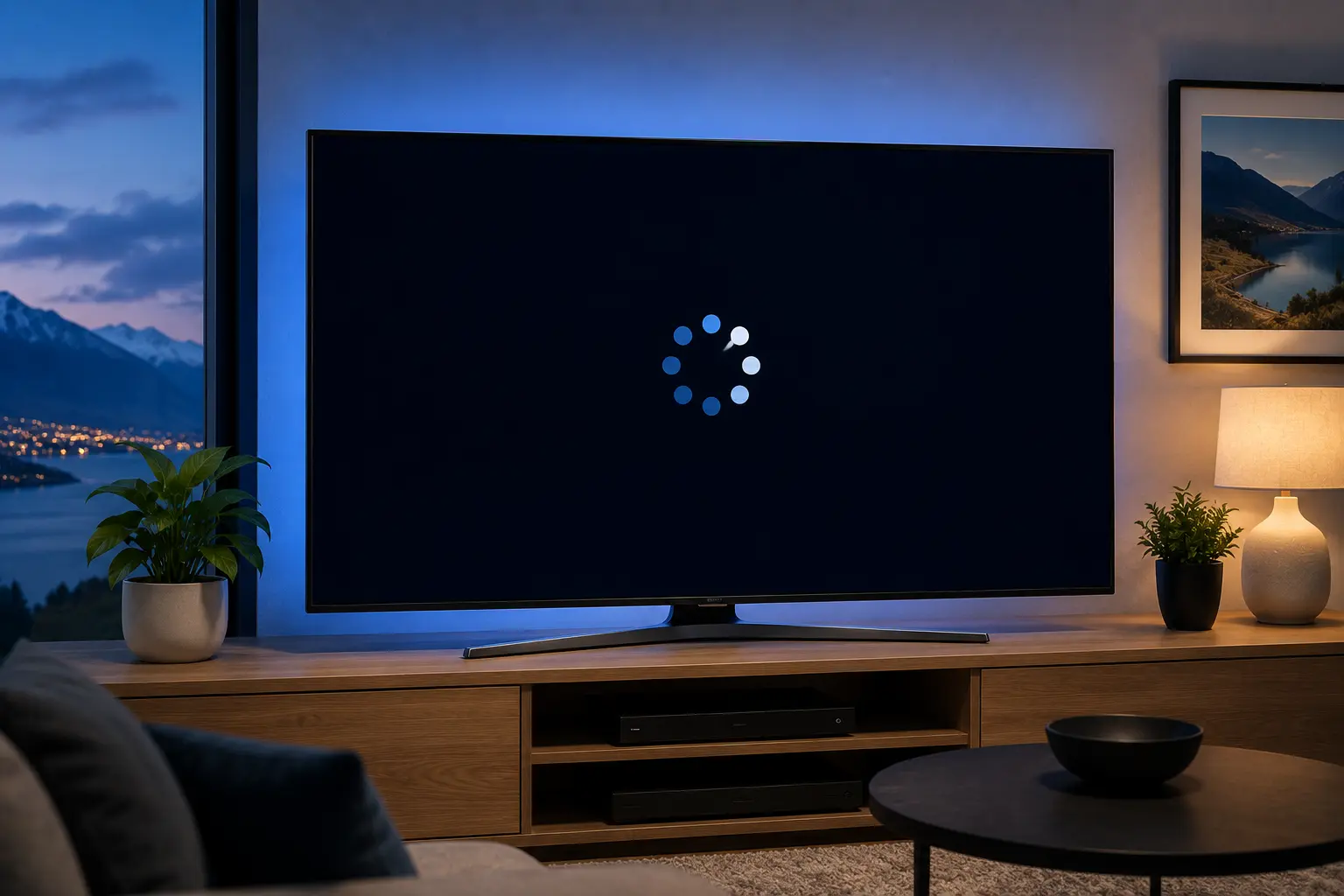
Quick answer: Restart the Samsung TV fully, update the TV software, update the app, test another local streaming app, then check whether your Samsung model is supported. If every app fails, focus on Wi‑Fi or fibre. If only one app fails, focus on that app login, cache or device support.
Start with the simple Samsung TV checks
Do not delete every app first. A Samsung TV can keep old app processes active in the background, especially after sleep mode. Hold the power button on the remote until the TV restarts, or unplug the TV from power for one minute. Then open one New Zealand streaming app and test live or on-demand playback.
If TVNZ+, ThreeNow and Neon all fail, the issue is probably the TV, Wi‑Fi, DNS, router or software. If only one app fails, the account, app cache or service support is more likely. This separation saves time and avoids unnecessary resets.
| Symptom | Likely cause | Best first fix |
|---|---|---|
| App opens then black screen | Playback engine or old app data | Restart TV and update app |
| TVNZ+ missing | Unsupported Samsung model or store region | Check TVNZ+ supported Samsung models |
| All apps buffer | Weak Wi‑Fi or fibre/router issue | Test 5 GHz Wi‑Fi or Ethernet |
| One app signs out | Account/session issue | Sign out and generate a fresh login code |
TVNZ+ on Samsung TV: model support matters
TVNZ+ lists Samsung Smart TV support for Tizen 2020 and newer models. That means older Samsung TVs may still work for other apps but not give a stable TVNZ+ experience. If your TV is older, testing TVNZ+ on Chromecast with Google TV, Fire TV Stick, Apple TV or a newer Android TV device can be faster than fighting the built-in app.
When TVNZ+ is installed but freezes, update the TV software, open the app store, check for app updates, then restart the TV again. If the app asks for a login code, complete the process on a phone or laptop and avoid refreshing the code multiple times at once.
Want a cleaner New Zealand streaming setup?
Compare Ultim4K plans, test your device first, and choose a setup that fits your Smart TV, Chromecast, Fire TV, phone or tablet.
ThreeNow, Neon and Freeview checks
ThreeNow, Neon and Freeview Streaming TV each have their own supported-device lists and app behaviour. A Samsung TV can support one service while another is limited by model year, region or app availability. Search each app in the Samsung app store, update it, then test a short on-demand item before a live event.
- Update Samsung TV software from Settings before reinstalling apps.
- Restart the TV after installing or updating a streaming app.
- Use the same New Zealand account region you normally use.
- Check another app to see whether the problem is service-specific.
- Use Ethernet or strong 5 GHz Wi‑Fi for the main TV where possible.
When a streaming stick is the cleaner fix
If your Samsung TV is old but the panel still looks good, a streaming stick can extend the life of the setup. Chromecast with Google TV, Fire TV Stick, Apple TV or a supported Android TV device can offer newer app versions than the built-in Smart Hub on older TVs.
This is especially useful for families that switch between TVNZ+, ThreeNow, Neon, Sky Sport Now and Freeview. Keep the TV as the display, but let a newer device handle app updates and playback.
Before match night or family viewing
New Zealand streaming problems usually become stressful when everyone is ready to watch. Test the app before a live sport event, movie night or replay. Open the app early, confirm the login, play a short video, and keep a backup device ready if the built-in TV app is old.
Official resources to check
- TVNZ+ supported devices
- TVNZ+ supported TV app models
- Neon supported devices
- ThreeNow ways to watch
- Fix streaming buffering on New Zealand fibre and Wi‑Fi
- Best streaming apps for New Zealand Smart TV users
FAQ
Common causes include old TV firmware, unsupported TV model year, weak Wi‑Fi, stuck app data, account sign-in issues, or a temporary issue with the streaming service.
TVNZ+ lists Samsung Smart TV support for Tizen 2020 and newer models. Older models may not be fully supported.
Restart the TV fully, update Samsung software, update the app, test another app, and check whether the issue is only one service or the whole TV.
That usually means the account and internet are fine, but the Samsung app, TV software, device model or app-store version needs attention.
No. Ultim4K is an independent setup and streaming guide. Official app access, subscriptions and rights remain separate.
Need help with your New Zealand streaming setup?
Message Ultim4K with your TV model, app name, internet type and the issue you see. We can help you check device compatibility and stable viewing options before you choose a plan.